
Pool Automation Schedule Wrong in Sacramento? What to Check After the Time Change
Daylight saving time changes can disrupt pool automation schedules, causing pumps, heaters, and lighting systems to operate at the wrong times. This guide explains how Sacramento pool owners can identify clock and scheduling issues, check controller settings, and determine when professional pool equipment repair is necessary.
How Daylight Saving Time Affects Pool Automation
A daylight saving time change can leave pool equipment operating outside its intended schedule, particularly when an automation controller fails to update its clock correctly. For Sacramento pool owners, a one-hour timing discrepancy can affect filtration cycles, heating schedules, and pool lighting, even when the equipment itself is functioning normally.
Before modifying individual schedules, it is important to check the controller's clock, time zone, and synchronization settings. Identifying the cause can help restore accurate operation without unnecessary changes to existing equipment programming.
1. Check Your Pool Automation System's Clock
Start by comparing the time displayed on your pool automation control panel with Sacramento's current local time. If the controller is one hour ahead or behind, review its clock and daylight saving settings.
Some systems adjust automatically, while others require manual changes. Pentair IntelliCenter, for example, supports manual time settings, internet synchronization, and daylight saving adjustments. Available options depend on the controller model and software version.
Check the controller's Date & Time configuration. Review the selected clock source, displayed date and time, and daylight saving adjustment setting before changing individual equipment schedules. If timing errors persist, professional pool repair services from Nevergreen Pools can help identify controller faults and restore proper equipment operation.
2. Verify the Time Zone and Daylight Saving Settings
An incorrect time zone or daylight saving setting can cause your pool equipment to operate outside its programmed schedule, even when the displayed clock appears correct.
Check that your controller is set to Pacific Time and that automatic daylight saving adjustments are enabled. If your system uses internet synchronization, verify its Wi-Fi connection, date, time, and location settings. Incorrect synchronization can prevent the controller from maintaining accurate local time and equipment schedules.
3. Review Pool Pump and Filtration Schedules
An incorrect pool pump schedule can disrupt filtration and circulation. Review these settings before adjusting operating hours:
- Start and stop times: Confirm the scheduled operating window.
- Run duration: Verify that filtration hours remain unchanged.
- Pump speed: Check programmed speeds and flow settings.
- Operating mode: Confirm the pump is in automatic or scheduled mode.
-
Distinguish between fixed-time schedules, such as 8 AM to 4 PM, and sunrise or sunset schedules. Fixed schedules rely on the controller clock, while astronomical schedules depend on location, date, and time settings.
Avoid reducing filtration hours to compensate for an incorrect clock. Follow manufacturer recommendations and your pool's circulation requirements. If scheduling problems persist, check for conflicting programs or controller synchronization issues before making further adjustments.
4. Check Pool Heater and Lighting Schedules
Pool heaters and lighting systems may use separate schedules or automation circuits.
If your heater starts too early or operates outside its intended window, check its programmed times, temperature settings, and control configuration.
For pool lights, review activation times and determine whether the controller uses fixed schedules or sunrise and sunset settings. Correcting the main controller clock may resolve several timing problems without changing individual equipment programs.
For more practical guidance on managing automated pool equipment, read How Smart Pool Automation Simplifies Summer Pool Care, which explains how smart controls help simplify routine pool maintenance.
5. Check App Synchronization and Saved Settings
If your pool automation app displays a different time than the control panel, check synchronization and network settings.
- Confirm your phone's automatic date and time settings.
- Check the controller's Wi-Fi connection.
- Refresh the automation app.
- Review duplicate or overlapping schedules.
- Verify clock and saved settings after a power interruption.
Jandy AquaLink, Pentair IntelliCenter, and Hayward OmniLogic have different settings and interfaces. Follow the manufacturer's instructions for your specific model.
Safety reminder: Avoid opening electrical panels or modifying wiring. Have electrical faults inspected by a qualified technician.
6. When Should You Schedule Professional Pool Automation Repair?
If your pool automation schedule remains incorrect after checking the clock and programming, the issue may involve controller settings, network synchronization, software, relays, or equipment communication. When the controller displays the correct time but connected equipment fails to operate as scheduled, professional diagnosis may be necessary.
Nevergreen Pools provides professional pool equipment repair and authorized warranty service for Jandy, Pentair, and Hayward systems. A professional assessment may include:
- Inspection: Examining the controller and connected equipment.
- Diagnosis: Identifying programming, communication, or equipment faults.
- Estimate: Explaining recommended repairs and associated costs.
- Repair: Completing necessary repairs using appropriate parts.
- Verification: Confirming proper equipment operation.
If your pool automation system continues to experience scheduling errors or equipment malfunctions, Contact Nevergreen Pools to request a professional evaluation and determine the appropriate next step for your pool equipment.
Frequently Asked Questions
1. Why does my pool pump run one hour early or late?
An incorrect controller clock, daylight saving setting, or synchronization issue may cause the pump to follow an outdated schedule. Check the displayed time before changing its programming.
2. How do I change the time on a Pentair IntelliCenter?
Open the controller's Date & Time configuration and review the clock source, date and time, and daylight saving adjustment settings. Available options and menu navigation can vary by software version.
3. Can I correct the clock on a Jandy or Hayward pool automation system?
Check the controller's date, time, and time zone settings, following the manufacturer's instructions for your specific model.
4. Why does my pool automation app show a different time?
Incorrect phone settings, network interruptions, or controller synchronization problems can cause differences between the app and control panel.
5. Can daylight saving time affect my pool heater schedule?
Daylight saving time can shift your pool heater's programmed operating hours if the automation controller does not update its clock correctly. Check the controller's date, time, and scheduling settings to ensure the heater starts and stops at the intended times.
Restore Reliable Pool Automation in Sacramento
An accurate pool automation schedule helps maintain consistent filtration, heating, and lighting operations. Persistent timing errors, missed equipment cycles, or communication problems may indicate that the system requires professional attention.
If your pool automation system continues to operate outside its programmed schedule, Schedule professional pool equipment service with Nevergreen Pools in Sacramento. A technician can evaluate the controller, identify scheduling or equipment faults, and recommend the appropriate repair to restore reliable operation.


Let’s Talk About Your Pool
Reach out to our team for service questions, scheduling, or next steps, clear communication starts here.


From the People We Serve
Recognized for the Way Our Team Shows Up


Very responsive - I called three other spa services companies and no one called me back. Kyle picked up right away. Very knowledgeable - Kyle knows his stuff! Products and how to. Not only is my problem fixed, but I’m a better spa owner now.
Read moreLisa Karle
Very happy we found Nevergreen Pools. They provide impeccable service consistently. Our pool and spa have never been so clean and clear. The owner takes great pride in their work. We were so pleased with their service we were confident to refer them to a neighbor.Highly Recommend!
Read moreLinda L.
Thank you Nevergreen for freeing me of all the worries of my pool so that I may come home from work and enjoy it rather than perform maintenance.
Read moreChris C.
Standard pool service can be like visiting the dentist for a cleaning- necessary, but not exciting. It isn't until you find someone who truly cares about their craft that you realize how different it can be. Our pool isn't just clean, it sparkles. Recommendations for improvements are made, but not pushed. Service is consistent and my needs are considered proactively. Kyle's attention to every detail demonstrates the difference between a pool company that is focused on churning pools vs. the concierge service that comes from an owner who takes pride in their results. Highly recommend.
Read moreRoy M.
This was the third time we have had them come out to keep our filter running. This time we were under the impression that we were going to need to replace the pump for almost $4000. When Nathan came out, instead of just blindly changing it, he pointed out some minor things that needed to be done and only charged the diagnostic fee. We have had Kiani (on the spelling) and now Nathan out, and both have provided excellent service. Highly recommend this company!
Read moreTravis M.
Nevergreen Pools is the best! They've always kept my pool looking great, I've never had to worry the pool since Nevergreen took over the weekly service.
Read moreSam A.
Keoni came on time and was very professional. He was super knowledgeable about every piece of the equipment as well as the iAquaLink app. He not only got my system running, but helped me adjust the parameters to save money on electricity. He pointed out what issues might arrive in the near future and without trying to upsell just let me know what to keep an eye out for. I already have pool cleaning services, but will absolutely use Nevergreen pools for all my pool repair needs.
Read moreJames H.
Jeff has great work ethic & most pleasant demeanor which is reflected in how the pool looks when he's done. I try to fill in between his visits but he makes that task minimal. We've been pool owners for almost 50 years, the first half of that time I managed the pool condition, the second half we've had it professionally done & Nevergreen offers the best service in this experience. The after-service email photo say it all & a nice touch.
Read moreGeorge A.
Nevergreen Pools has been incredible to work with from start to finish. Their team is professional, reliable, and really knows their stuff when it comes to pool maintenance and repairs. Scheduling was super easy, and I appreciated the transparent pricing--no hidden fees or surprises. It's clear they care about their customers and take pride in their work. Highly recommend if you're looking for top-notch pool service in the area!
Read moreConnor C.
Servicing Areas
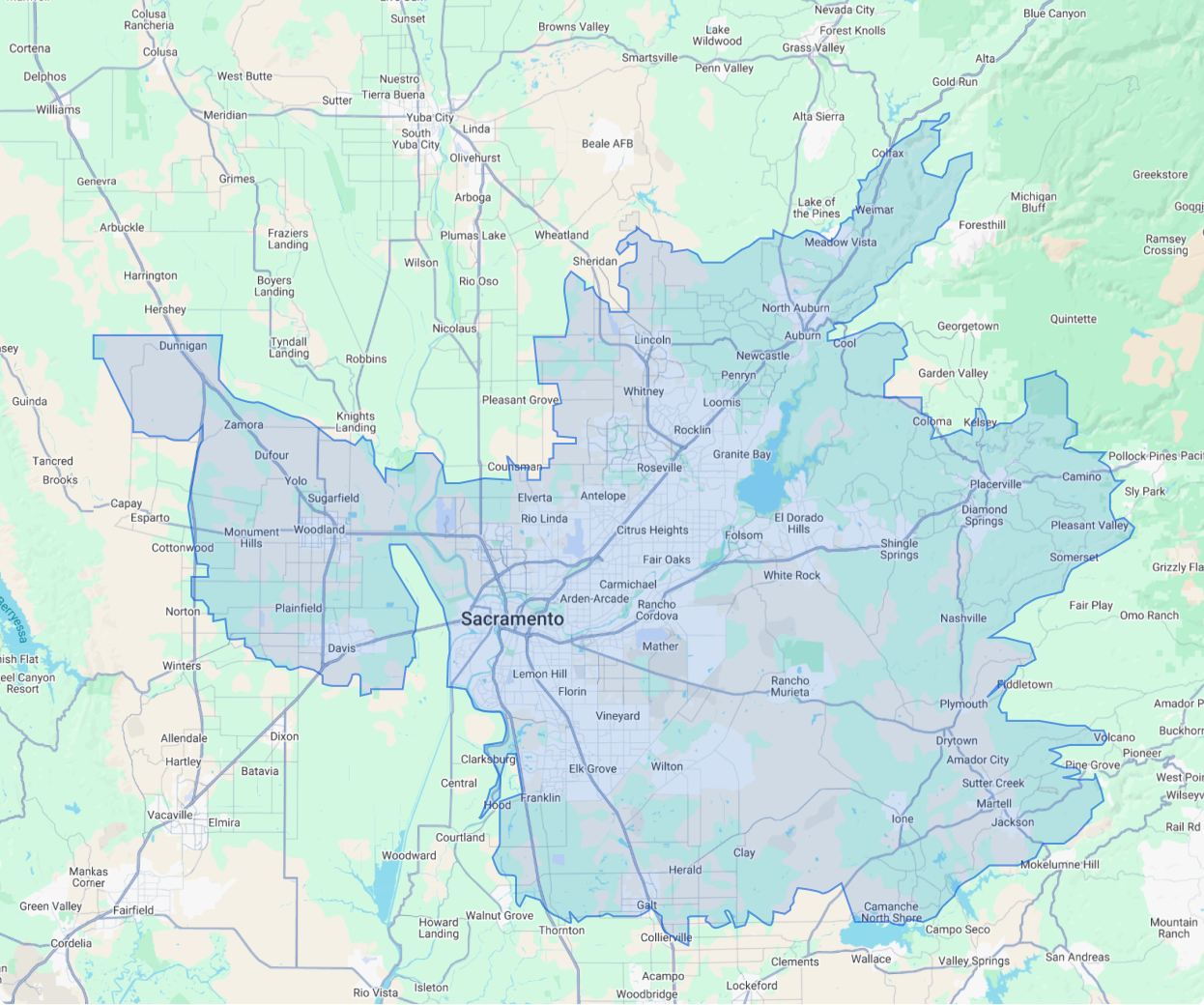
Proudly Serving Northern California

El Dorado Hills
Cameron Park
Fair Oaks
Folsom
Placerville
Shingle Springs
Granite Bay
Rocklin
Roseville
Woodland
Davis
Sacramento
Lincoln
Elk Grove
Jackson
Ione


